The Ultimate Setup Guide for Your Dynabook Tecra A65 M Business Laptop
The transition from the Toshiba brand to Dynabook marked a significant shift in the corporate hardware landscape. While many users still associate Japanese engineering precision with the Satellite or Portege names, the Tecra line has quietly evolved into one of the most dependable workhorses for modern enterprises. The Dynabook Tecra A65-M represents the latest iteration of this legacy, balancing the rigorous demands of professional computing with the portability required by the hybrid work era. This guide serves as a comprehensive roadmap for IT administrators and professional end-users alike, detailing how to optimize this specific machine for maximum productivity, security, and longevity.
Understanding the Hardware Architecture
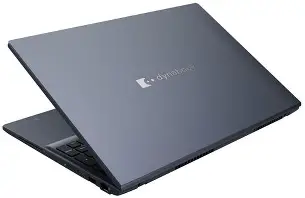
Before diving into the software configuration, it is essential to understand what makes the Tecra A65-M a distinct entity in the business market. Unlike consumer-grade laptops that prioritize aesthetic flourishes, the A65-M is built on a foundation of "Functional Durability." The chassis is designed to meet MIL-STD-810H standards, meaning it has undergone rigorous testing against drops, vibrations, and temperature extremes. Under the hood, the machine typically features the latest Intel Core Ultra processors, which integrate a dedicated Neural Processing Unit (NPU) for AI-driven tasks. This is a critical distinction for setup, as it changes how the operating system handles background tasks like noise cancellation, background blur in video calls, and energy management.
The 16:10 aspect ratio display is another standout feature. Most older business laptops utilized a 16:9 ratio, but the extra vertical space on the A65-M allows for more rows in spreadsheets and better visibility for long-form documents. During the initial setup, ensuring the scaling and resolution are tuned to this taller aspect ratio is the first step toward a comfortable ergonomic experience.
Initial Out-of-Box Setup and OS Configuration
When you first power on the Dynabook Tecra A65-M, you are greeted by the Windows 11 Pro setup environment. For a business machine, the choices made here impact everything from network security to the speed of future updates. It is highly recommended to connect to a stable Wi-Fi network immediately to allow the system to check for critical firmware updates during the initial handshake. For corporate environments, this is the stage where the device should be enrolled in Microsoft Autopilot or joined to an Azure Active Directory (now Microsoft Entra ID) to ensure that company policies are pushed to the device seamlessly.
One of the most overlooked aspects of the initial setup is the BIOS/UEFI configuration. Dynabook uses a proprietary BIOS that is considered one of the most secure in the industry because it is developed in-house rather than being outsourced to a third-party vendor. To access these settings, tap the F2 key during the initial splash screen. Here, users should enable Secure Boot and ensure the Trusted Platform Module (TPM 2.0) is active. For those working in high-security sectors, consider setting a Supervisor Password at the BIOS level to prevent unauthorized hardware changes or boot-order modifications.
Optimizing the Business Workflow
Once the operating system is stabilized, the next phase of the setup involves tailoring the software environment. The Tecra A65-M is often used by financial analysts, project managers, and engineers who require sustained performance without thermal throttling. Dynabook provides a utility known as the "Service Station." This should be your first destination for driver updates. Unlike generic Windows Updates, the Service Station provides BIOS updates and hardware-specific drivers that are optimized for the A65-M's cooling profile and energy consumption targets.
Battery longevity is a primary concern for the mobile professional. The A65-M includes a high-capacity battery, but its lifespan depends on charging habits. Within the Dynabook settings, look for the "Battery Health Mode." If the laptop will spend 90% of its time connected to a docking station, enabling the mode that limits the maximum charge to 80% can significantly extend the chemical life of the battery. This prevents the cells from sitting at a high-voltage state for prolonged periods, which is the leading cause of battery swelling and capacity loss in modern ultrabooks.
The Comparison: Tecra A65-M vs. Market Competitors
To understand where the A65-M sits in the current market, it is helpful to compare it against other industry standards in the 15-to-16-inch business category. The following table highlights key specifications and design philosophies that differentiate the Dynabook from its peers.
Shop the latest Laptops & Computers picks on Amazon.
View Offers →| Feature | Dynabook Tecra A65-M | Typical 16-inch Enterprise Rival | Primary Business Benefit |
|---|---|---|---|
| BIOS Origin | In-house Proprietary | Third-party (AMI/Phoenix) | Higher security, fewer vulnerabilities |
| Weight | Approx. 1.6kg - 1.8kg | 1.8kg - 2.1kg | Easier portability for commuters |
| Chassis Material | Antimicrobial Paint Finish | Anodized Aluminum/Plastic | Hygiene and durability in shared spaces |
| Keyboard | Spill-resistant, 1.5mm travel | Standard Chiclet | Comfortable long-form typing |
| Video Conferencing | AI-enhanced with Dual Mic | Standard Webcam | Clearer communication in noisy offices |
Performance Tuning and Thermal Management
The Intel Core Ultra chips inside the Tecra A65-M are designed for "bursty" workloads. This means they can ramp up to high clock speeds for tasks like compiling code or rendering a complex PDF, but they must eventually "throttle" back to stay within thermal limits. To get the most out of your setup, go into the Windows Power Settings and customize the "Balanced" profile. Many users believe "High Performance" is always better, but on an ultra-slim chassis like the A65-M, the High Performance setting often leads to the fans spinning at maximum volume, which can be distracting in a quiet meeting room.
Instead, use the Dynabook Cooling Strategy settings. If you frequently use your laptop on your lap, select the "Cool" mode, which prioritizes lower skin temperatures. If the machine is docked on a desk with plenty of airflow, the "Performance" mode will allow the CPU to maintain its boost clocks for longer durations. Additionally, ensure that the intake vents on the bottom of the device and the exhaust vents near the hinge are never obstructed. Even a small piece of paper blocking these vents can lead to a 20% drop in processing efficiency as the system tries to protect itself from heat soak.
Connectivity and Peripheral Integration
A business laptop is only as good as the ecosystem it supports. The Tecra A65-M is equipped with a generous array of ports, often including USB-C with Thunderbolt 4, HDMI, and even an Ethernet port—which is becoming a rarity in thin-and-light designs. When setting up your workspace, the use of a Thunderbolt 4 dock is highly recommended. This allows a single cable to handle power delivery, multiple 4K monitors, and high-speed data transfer from external drives.
For mobile connectivity, the A65-M supports Wi-Fi 6E. To truly leverage this, ensure your office or home router supports the 6GHz band. This band is less congested than the traditional 2.4GHz and 5GHz frequencies, resulting in lower latency during critical video calls. If your specific model includes an LTE or 5G SIM slot, the setup will require inserting the nano-SIM and configuring the Windows Cellular settings to prioritize Wi-Fi to save on data costs while automatically switching to cellular when the Wi-Fi signal drops below a certain threshold.
Pros and Cons Analysis
The Dynabook Tecra A65-M is a specialized tool, and like any tool, it has strengths and compromises. Buyers typically care about reliability and return on investment over flashy features, and this breakdown reflects that professional perspective.
- Pro: Exceptional Security Depth - Beyond the TPM 2.0 and Windows Hello integration, the in-house BIOS development provides a layer of protection that is difficult for hackers to penetrate compared to standardized BIOS platforms.
- Pro: Lightweight Portability - For a 16-inch class laptop, it is surprisingly light, making it one of the few large-screen devices that doesn't feel like a burden during international travel or long commutes.
- Pro: Legacy Port Selection - The inclusion of a full-sized RJ-45 Ethernet port and multiple USB-A ports reduces the "dongle hell" often associated with modern professional laptops.
- Pro: Antimicrobial Coating - The unique paint finish helps inhibit the growth of bacteria on the laptop surfaces, a thoughtful addition for devices used in hospitals, schools, or shared office "hot-desking" environments.
- Con: Understated Aesthetics - The design is very traditional. It does not turn heads in a coffee shop, which might be a downside for those who prefer the sleek, metallic look of premium consumer machines.
- Con: Display Brightness - While the color accuracy is sufficient for business tasks, the maximum nits (brightness) may struggle in direct outdoor sunlight, making it better suited for indoor or shaded environments.
- Con: Audio Profile - The speakers are tuned for voice clarity in meetings rather than rich media consumption. For music or movie watching, external headphones are almost a necessity.
The Professional Buying Guide: Is the A65-M Right For You?
When selecting a business laptop, the decision often comes down to the specific use case of the employee. The Dynabook Tecra A65-M is positioned as a "mid-to-high" tier device. It is more robust than the E-Series but slightly less specialized than the ultra-premium Portege X-Series. It is the "sweet spot" for most corporate deployments.
The Corporate Fleet Buyer: For IT managers, the A65-M is an excellent choice because of its serviceability. Dynabook maintains a consistent motherboard design over several cycles, making it easier to stockpile spare parts or clones of a master software image. The reliability ratings are high, meaning fewer help-desk tickets for hardware failure.
The Remote Professional: If you work from home but occasionally travel to headquarters, the 16-inch screen is a massive productivity booster. It provides enough real estate to work on two windows side-by-side without needing an external monitor, yet the 16:10 aspect ratio ensures the total footprint of the laptop still fits into a standard backpack.
Looking for the best Laptops & Computers deals on Amazon?
Shop Amazon →The Security-Conscious User: If you handle sensitive client data, the combination of physical webcam shutters, fingerprint biometrics, and the proprietary BIOS makes the A65-M one of the safest "mobile vaults" for your information. You aren't just buying a laptop; you are buying peace of mind.
When purchasing, pay close attention to the RAM configuration. While many business machines now come with soldered memory, checking if your specific A65-M SKU has an open SO-DIMM slot for future upgrades is vital. If you plan to keep the machine for four or five years, opting for 16GB or 32GB of RAM at the outset is a wise investment, as modern web browsers and AI-integrated applications are increasingly memory-intensive.
Advanced Security and Maintenance
Maintaining the Tecra A65-M involves more than just cleaning the screen with a microfiber cloth. To keep the professional environment secure, users should regularly run the Dynabook Diagnostic Tool. This utility checks the health of the SSD (Solid State Drive) and the cooling system. If the SSD shows signs of excessive wear (measured in "TBW" or Total Bytes Written), it provides a warning long before a catastrophic data loss event occurs.
Furthermore, the physical security features should be fully utilized. The A65-M usually includes a Kensington Lock slot. Even in a home office, using a cable lock can prevent "grab-and-go" thefts. On the software side, ensure BitLocker Drive Encryption is active. Since the A65-M has a TPM chips, Bitlocker will encrypt your entire drive without any noticeable impact on performance, ensuring that if the laptop is lost or stolen, your data remains unreadable to anyone without your login credentials.
Finally, consider the ergonomics of your setup. The A65-M's keyboard is excellent, but for 8-hour sessions, using a laptop stand to raise the screen to eye level will prevent neck strain. Because the A65-M has a 180-degree hinge, it can be laid flat, which is particularly useful when using a vertical stand alongside an external keyboard and mouse.
Conclusion
The Dynabook Tecra A65-M Business Laptop is a testament to the idea that a tool doesn't need to be flashy to be superior. Its value lies in the details: the spill-resistant keyboard, the reinforced hinges, the proprietary BIOS security, and the thoughtful 16:10 display. By following this setup guide—from the initial BIOS hardening to the optimization of battery health and thermal profiles—you ensure that this machine remains a reliable partner for years to come. Whether you are managing a fleet of hundreds or configuring a single unit for your own consultancy, the Tecra A65-M provides a stable, secure, and highly productive platform that honors the long-standing tradition of Japanese electronic excellence.